 Redefine Docs
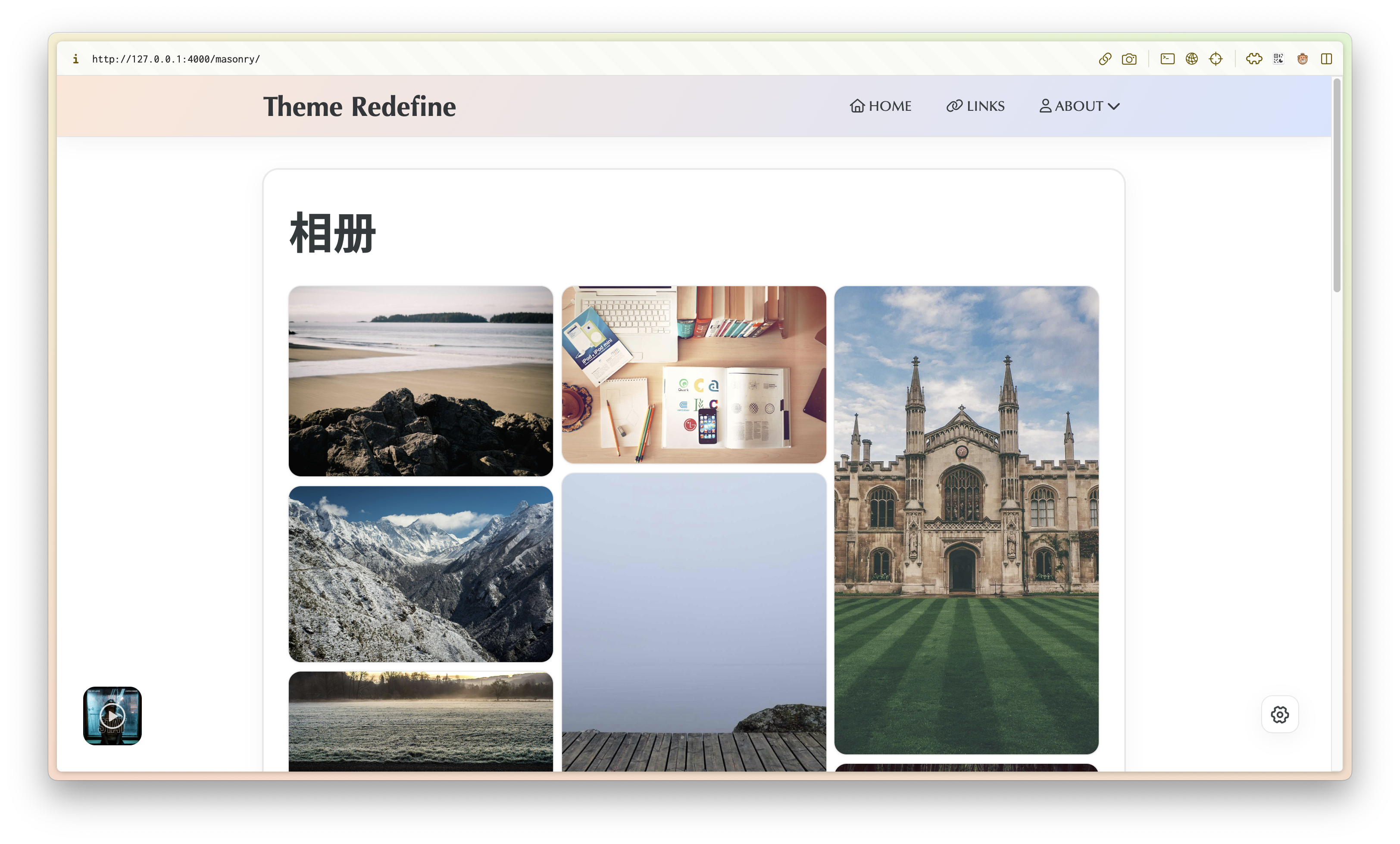
Masonry Photo Gallery Page
Demo
Configuration Tutorial
Starting from version 2.1.4, Redefine supports the Masonry photo gallery page. Here's how to use it:
Create a Photo Gallery Page
Execute the following command in the root directory of your Hexo project to create a photo gallery/wall page.
$ hexo new page masonryThen, open the Markdown file of this page ( source/masonry/index.md ), edit the Front Matter, add template: masonry, and you can create a photo gallery/wall page.
---
title: Masonry (Your custom title)
date: 2023/5/14 11:45:14
template: masonry
---
Modify the Configuration File
Enable links in the navbar configuration item of the Redefine theme configuration file _config.redefine.yml.
navbar:
  links:
    相册: #取名随意
      icon: fa-solid fa-image #图标
      path: /masonry/
(It can also be placed in the secondary menu)
Create the Photo Gallery Storage File
Add a _data folder in the source folder of your Hexo project (skip if already exists).
Create a masonry.yml file in the _data folder.
Configure the album information in the masonry.yml file in the following format:
Starting from Redefine v2.9.0, it is recommended to set width and height (original pixel dimensions) for each image in masonry.yml to reserve space and reduce layout shift (CLS).
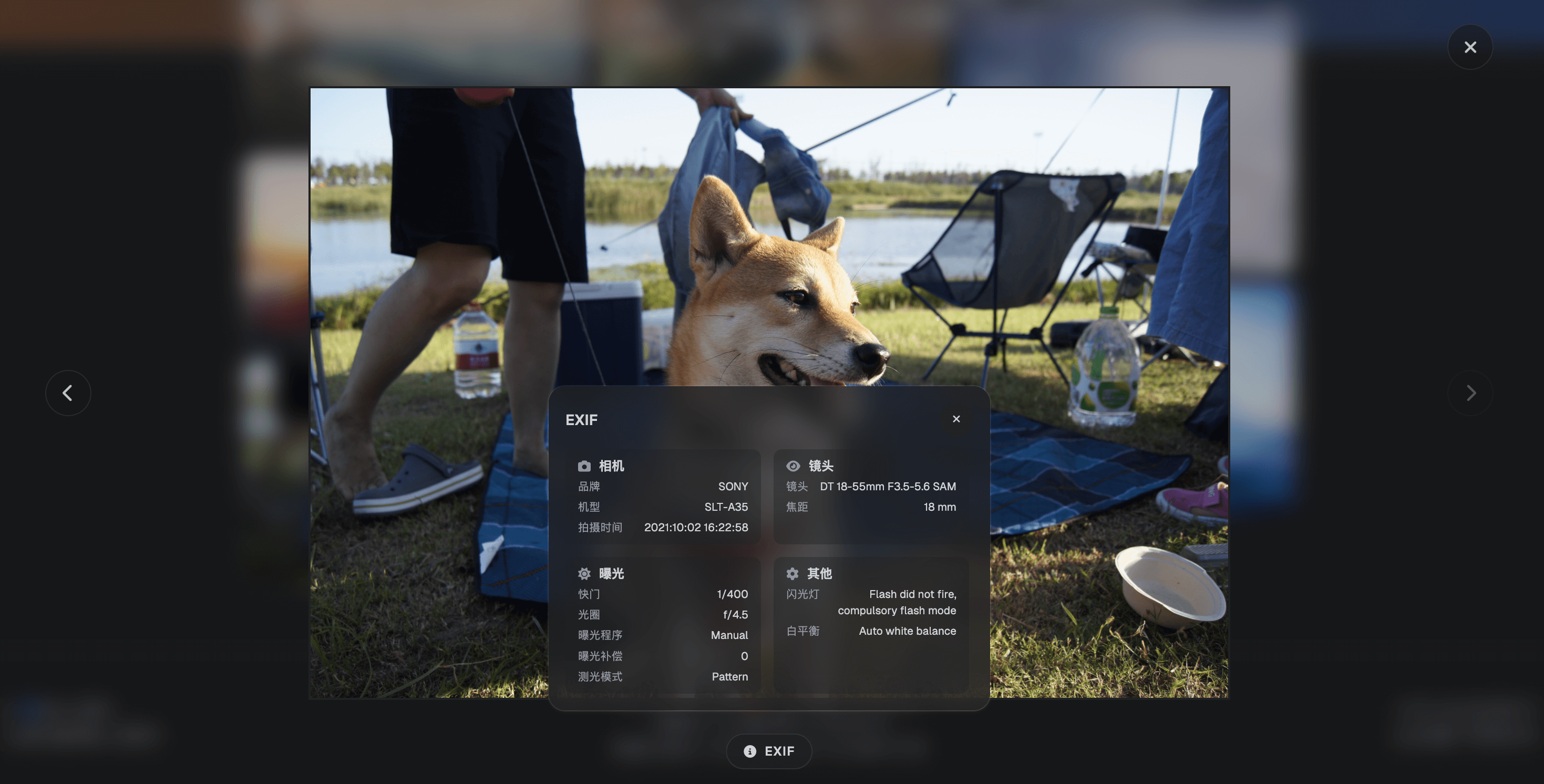
You can optionally set exif: true (default false) in masonry.yml to show EXIF info in the image viewer. EXIF is automatically detected from the image file metadata, so there is no need to manually enter EXIF fields. If the image is remote, make sure the image URL is CORS-compatible (its response includes Access-Control-Allow-Origin for your site or *); otherwise the browser cannot read metadata and EXIF will not be shown.
- image: Image URL
  width: 1920
  height: 1080
  exif: true
  title: Image Title
  description: Lorem ipsum dolor sit amet, consectetur adipiscing elit. Donec euismod

- image: https://picsum.photos/id/848/2000/1333
  width: 2000
  height: 1333
  title: Lorem ipsum
  description: Lorem ipsum dolor sit amet
EXIF Preview:
Creation Complete
Now you can access the page you created to see the effect.
Last updated on